![[Jcount.com]](https://www.jcount.com/wp-content/uploads/2014/08/jcount150X50.png)
![[Jcount.com]](https://www.jcount.com/wp-content/uploads/2014/08/jcountstartupslogo1.png)

More and more people have taken to watching videos on their computers – especially because of how convenient it is with online streaming videos, live streams, as well as TV shows and movies on services such as Netflix. But the one thing that all these share in common is the fact that you need to be connected to the internet to watch your favorite videos.
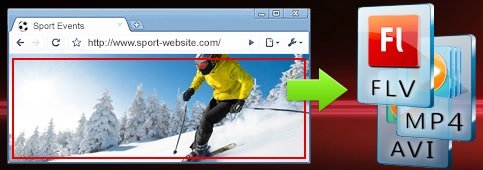
If you would prefer to be able to watch videos even when you’re offline, then the easiest way to do so is to capture them from your computer screen. That can be done by using Movavi Screen Capture Studio as a streaming video recorder.
Because Movavi Screen Capture Studio can record any video footage from your computer screen, you just need to configure it to record the video that is playing there by following these steps:
- Launch Movavi Screen Capture Studio and select ‘Record screen’ in the menu.
- Use the mouse cursor to draw a frame over the video that you want to record.
- Make sure the ‘System Audio’ icon is highlighted or click on it once if not.
- Click ‘REC’ and play the video when you want to record it.
- Click ‘Stop’ when the video is done, then either click ‘Save as’ to save it, or ‘Open in Editor’ to edit it.
Rest assured you can adjust any of the other recording parameters if need be as well, and set the frame rate, capture audio from a microphone, or even record keyboard and mouse actions. In fact Movavi Screen Capture Studio also has a scheduler that will let you automatically start and stop the recording at specific times.
Assuming you opt to edit your video, Movavi Screen Capture Studio will supply you with numerous features that will let you tweak it. Not only can you trim out any unwanted footage, merge clips together and improve the video quality – but you could also apply filters and special effects, insert customizable text fields, include background music, and a whole lot more.
In short Movavi Screen Capture Studio will let you easily capture videos from your computer screen and save them so that you can watch them even when you’re offline. Because you can also edit the videos that you record, you will find that you’re able to even extract highlights, compile videos, and do anything that you please really.


