![[Jcount.com]](https://www.jcount.com/wp-content/uploads/2014/08/jcount150X50.png)
![[Jcount.com]](https://www.jcount.com/wp-content/uploads/2014/08/jcountstartupslogo1.png)


There will be times when you would like to capture the activity that is happening on the screen of your iPad tablet. To perform a screen capture on your iPad, you need a screen capture software such as the Movavi Screen Capture Studio. The first step is to launch Movavi Screen Capture Studio for Mac and click on the Record Screencast button. Upon launching Movavi Screen Capture Studio, you must connect your iPad device to the Mac computer by using a USB cable.
Once your iPad device is connected to the Mac computer, it will automatically get recognized by the software and you will be able to find your device in the Capture Area drop down menu. Under your iPad device, you will see two screen capture options including landscape and portrait. You should choose landscape if you are holding your iPad in landscape mode. Similarly, you should select portrait if you hold your iPad in portrait mode during the recording session.
When you are ready, you can click on the orange REC button to start the recording session of your iPad screen. The 5 second countdown timer will start to count down when you click on the REC button. You can pause the screen recording by pressing the Pause button. The size and duration of the screencast are displayed in real time. Longer screencast takes up more space on your hard disk you want to monitor your screencast so that it doesn’t get too long.
You can record your own voice with the built in speaker that exist on your iPad during the recording of the screencast. It can also record the audio track from a speaker in the iPad screen capture recording session. The volume of your voice recording can be increased or reduced when you are editing the video. Movavi Screen Capture Studio allows you to save the screencast of your iPad screen in various compressed formats that can help you to save space. When you are done recording your iPad screen, you can click the Save button to save in in formats such as MP4, AVI, MOV and etc. As soon as you have save it, you can play back it several times to see if any edit is necessary.
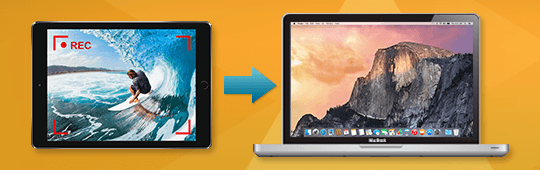
The built in editor tool allows you to make convenient edits on the iPad screencast video if you aren’t satisfied and feel that the video is not up to your standard. To start editing a screencast you have just taken on your iPad, you must click on the Edit button to bring up the built in editor. The built in editor is for making basic edits such as trim and merge segments of video, include transitions in between video segments and improve the quality of the footage.
Movavi Screen Capture Studio works with all versions of iPad from iPad 2 – 4. Movavi Screen Capture Studio also capture screens on other models such as iPad Air. It can run on Mac computers that is installed with at least iOS 8.


